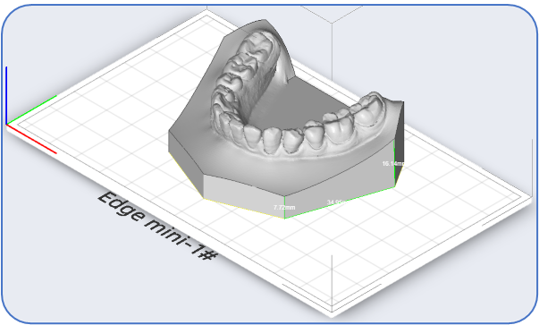
3.6 Bottom Quick Operation Bar
The bottom quick operation bar mainly includes four commonly used functions: "Move", "Rotate", "Place on Bed", and "Measure".

-Move operation, there are three methods to achieve the movement of the model (group):
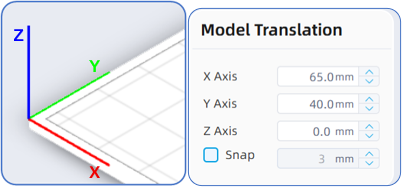
1) After selecting the designated model (group) and clicking the Move button, the model move operation box will pop up in the lower right corner. Users can directly input model coordinate values to move the model accurately, or click the up and down arrows behind the values to perform movement with fixed step values. The step value can be adjusted after checking the "Snap" option;
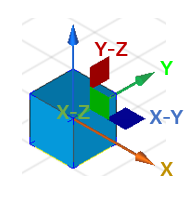
2)After selecting the designated model (group) and clicking the Move button, fast move axes and planes will be displayed on the model. Users can move the model along a specified direction/plane by dragging the X/Y/Z direction axes or the XY/XZ/YZ direction planes.
3)When the model is selected but the Move button has not been clicked, the model will be highlighted in blue. Users can hover the mouse pointer over the model. When placed on the highlighted box, the pointer will change to a "finger" shape; dragging the pointer at this time allows you to move the model on the X-Y plane. When the pointer is placed on the outer contour corner of the model, the pointer will change to a "rotate" shape; dragging the pointer at this time allows you to rotate the model.
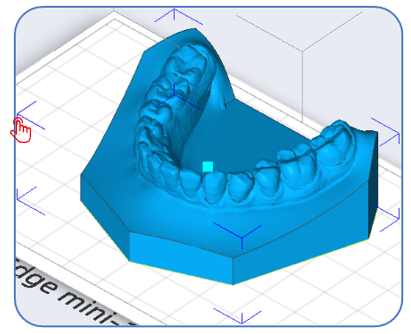
Rotate operation, the operation method is the same as the move operation
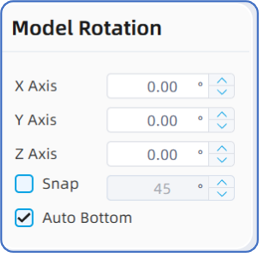
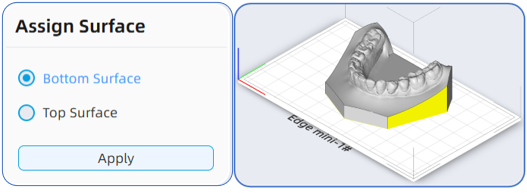
-Place on plate operation, after selecting the model, you can click the "Specify Surface" button, select "Bottom Surface" or "Top Surface", and then click the target surface (highlighted in yellow) to complete the Place on plate operation.
Measure operation, users can select from three measurement modes: simple measurement of distance, angle, and diameter. Taking distance measurement as an example, after selecting it, you can use the mouse to click on the model to select the start and end measurement points. You can right-click the mouse to cancel the selection. If you need to clear the dimensions, you can click the "Clear" button. If you need to exit the measurement, you can click the "Exit Measure" button.